
Goals
Goals keep the bigger picture in view. Kombine has two kinds: today’s toads for the day, and goals for each week, month, quarter and year.
Today’s toads
Section titled “Today’s toads”A toad is a task that must happen today, usually the one you’d rather avoid. Do it first and the rest of the day is easier. (The name comes from the “eat that frog” idea.)
Pick one toad, or up to three. All of them count the same. If you plan your day around a “Big 3”, these are your three. They’re listed by due date, then priority.
A finished or skipped toad stops being a toad, so its slot is free again.
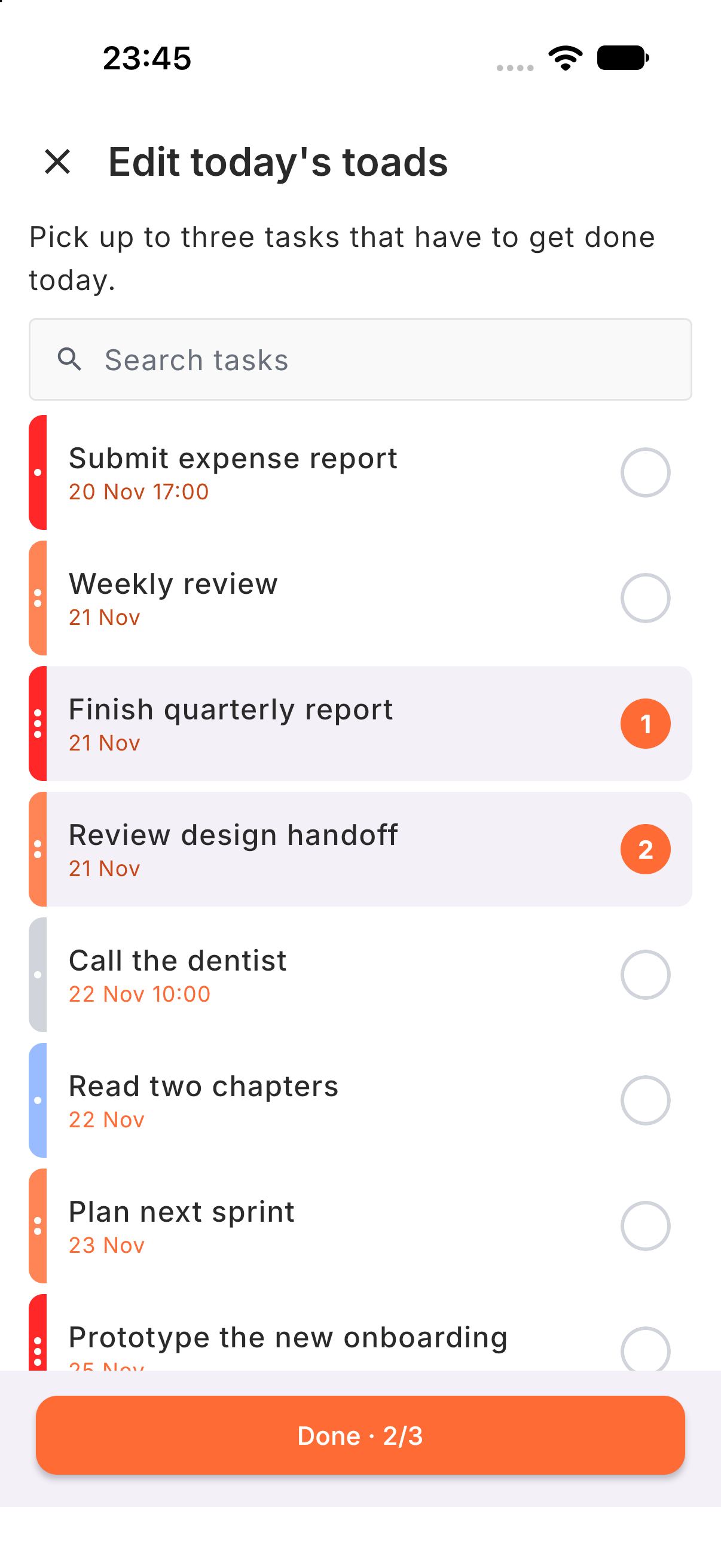
- On Goals or Today, tap Pick today’s toads. Tap up to three tasks; each one gets a number. Search works like the Tasks search. Tap Done · n/3 to save.
- Or long-press any task and choose Add to today’s toads or Remove from today’s toads. If you already have three, the picker opens so you can uncheck one.
- From the toad card: Start session on a toad, or Change / Edit to open the picker with your toads already checked. Uncheck one to remove it.
If you haven’t picked any toads yet, the picker opens the first time you open the app each day. Choose Skip for today, or Don’t ask again.
If yesterday’s toads are still open, you’ll first see Yesterday’s toads are still open. Tick the ones you actually finished. The rest carry over: they come already checked in the picker, so uncheck any you want to drop.
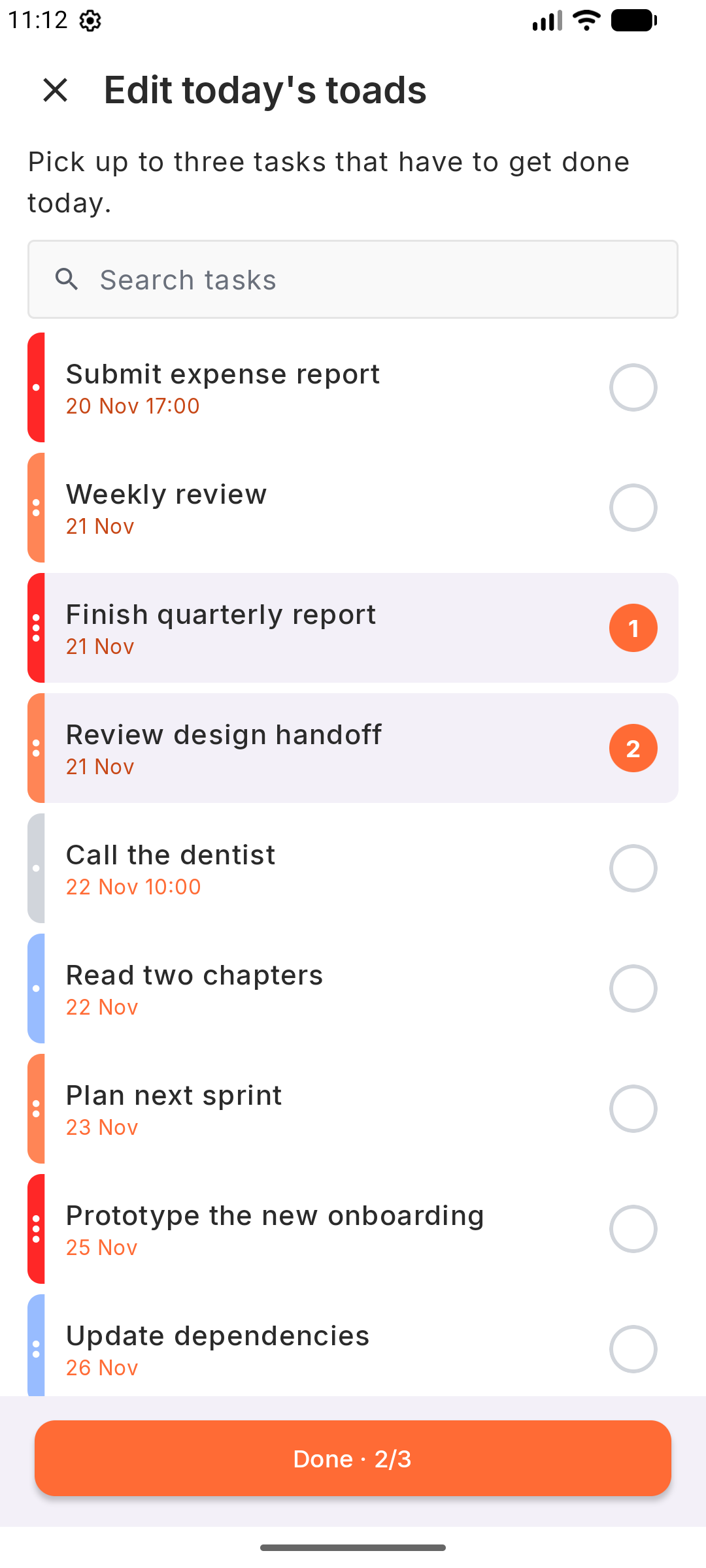
- On Goals or Today, tap Pick today’s toads. Tap up to three tasks; each one gets a number. Search works like the Tasks search. Tap Done · n/3 to save.
- Or long-press any task and choose Add to today’s toads or Remove from today’s toads. If you already have three, the picker opens so you can uncheck one.
- From the toad card: Start session on a toad, or Change / Edit to open the picker with your toads already checked. Uncheck one to remove it.
If you haven’t picked any toads yet, the picker opens the first time you open the app each day. Choose Skip for today, or Don’t ask again.
If yesterday’s toads are still open, you’ll first see Yesterday’s toads are still open. Tick the ones you actually finished. The rest carry over: they come already checked in the picker, so uncheck any you want to drop.
- On Goals or the Dashboard, click Pick today’s toads (Ctrl+I). Check up to three tasks, search if you need to, and click Done · n/3. At three, uncheck one to pick another.
- From a task card’s ⋮ menu: Add to today’s toads or Remove from today’s toads.
- Each toad has a ▶ to start a session. Edit opens the picker with your toads already checked. On Goals, × removes a toad.
Turn the Daily Toad off
Section titled “Turn the Daily Toad off”If you don’t use toads, switch them off. Toads then disappear everywhere: Today, Goals, the task menu, Statistics, your watch and the widget. Turning it off clears today’s toads. The setting syncs to your other devices.
Go to Settings › Prompts & tips and turn off Daily Toad. Ask every morning below it controls only the morning picker, on this device.
Go to Settings › Prompts & tips and turn off Daily Toad. Ask every morning below it controls only the morning picker, on this device.
Go to Settings › Planning and turn off Daily Toad.
Goals for a period
Section titled “Goals for a period”Each horizon (week, month, quarter, year) has its own card. On each card you write a few short goals for that period, tick them off as they come true, and look back when it’s over.
Every card shows how many days are left, colored green, then orange, then red as the period runs out. On the last day it says Last day.
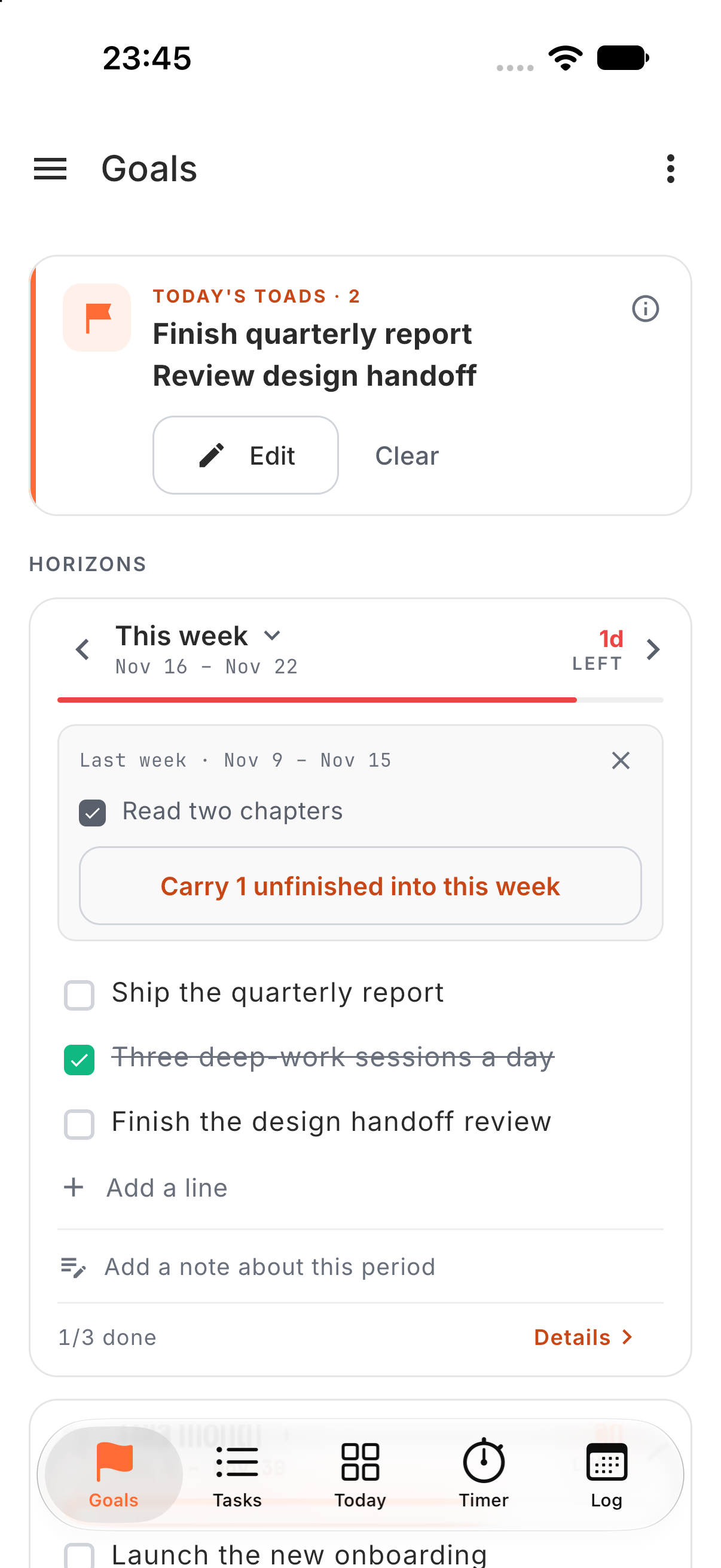
- Add: tap Add a line on a card and write what has to be true by the end of the period.
- Done: tap the box next to a goal. Tap the text to edit or delete it.
- Other periods: swipe the card left or right, or use ‹ ›. Tap the period name to jump to any week, month, quarter or year.
- Details opens the period: its goals, the tasks done and focus time in that period, linked tasks, and where carried goals came from.
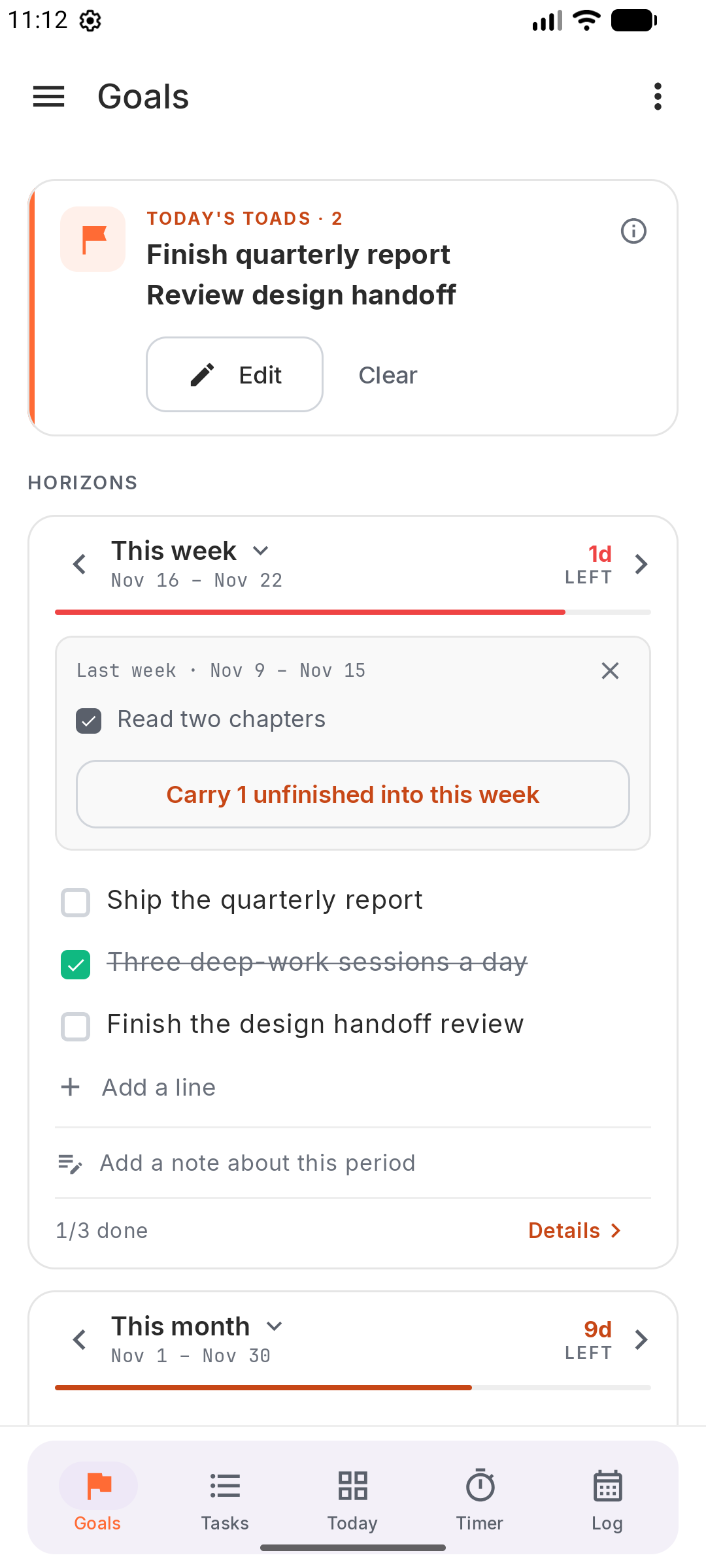
- Add: tap Add a line on a card and write what has to be true by the end of the period.
- Done: tap the box next to a goal. Tap the text to edit or delete it.
- Other periods: swipe the card left or right, or use ‹ ›. Tap the period name to jump to any week, month, quarter or year.
- Details opens the period: its goals, the tasks done and focus time in that period, linked tasks, and where carried goals came from.
- Add: type in the box on a card and click Add.
- Done: tick the goal. × removes it.
- Other periods: use ‹ ›, pick a period from the dropdown (• marks periods with goals), or click Today to come back.
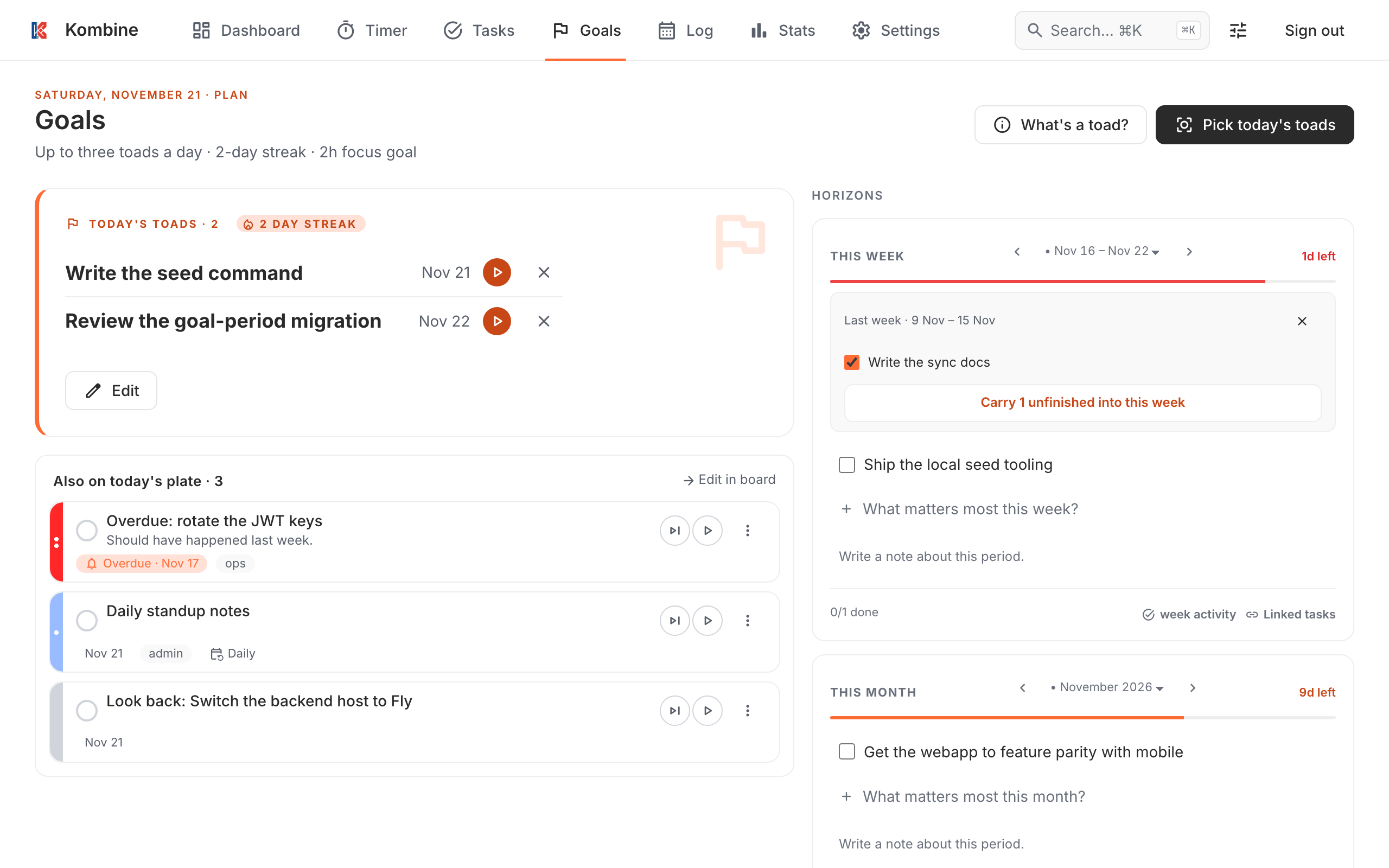
Periods that have ended are locked, so what you wrote stays as it was.
Review and carry over
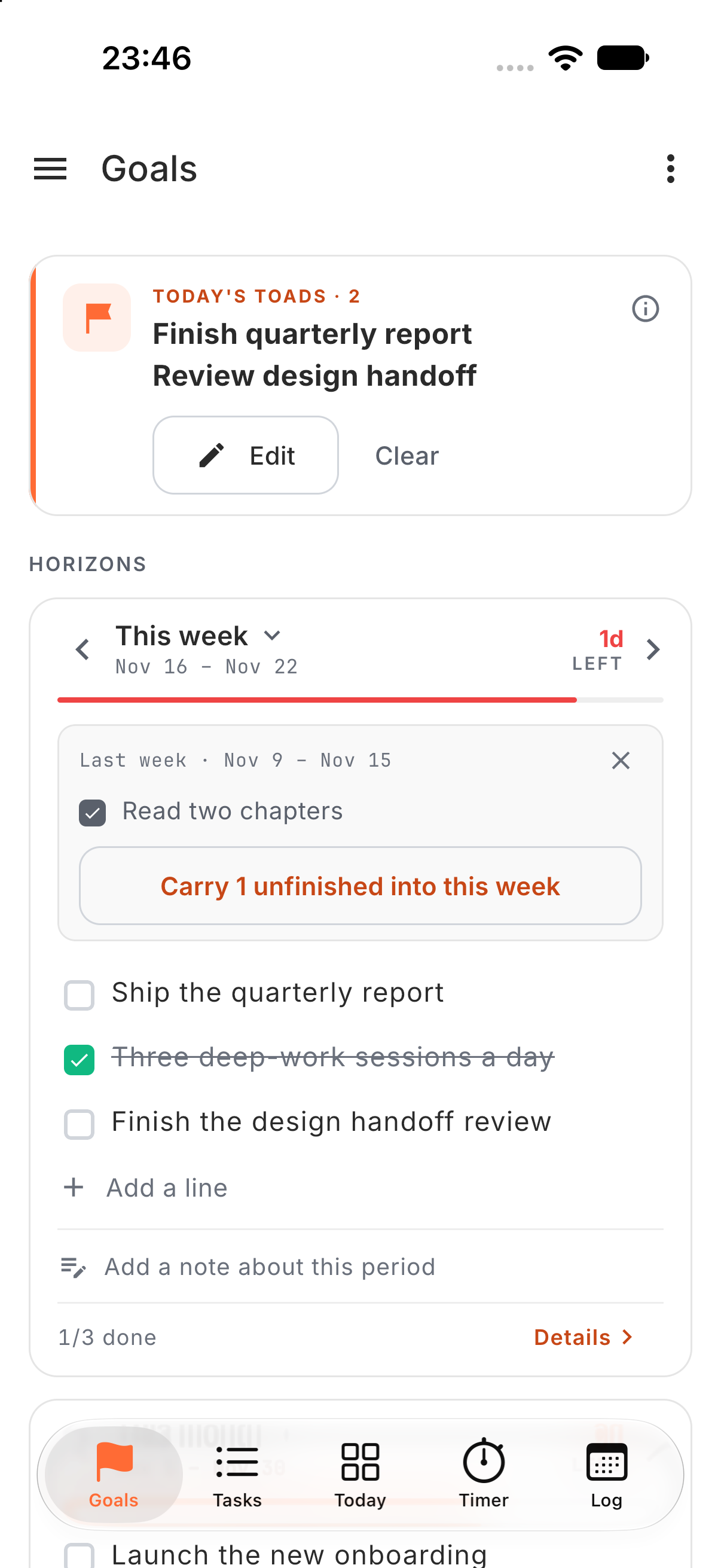
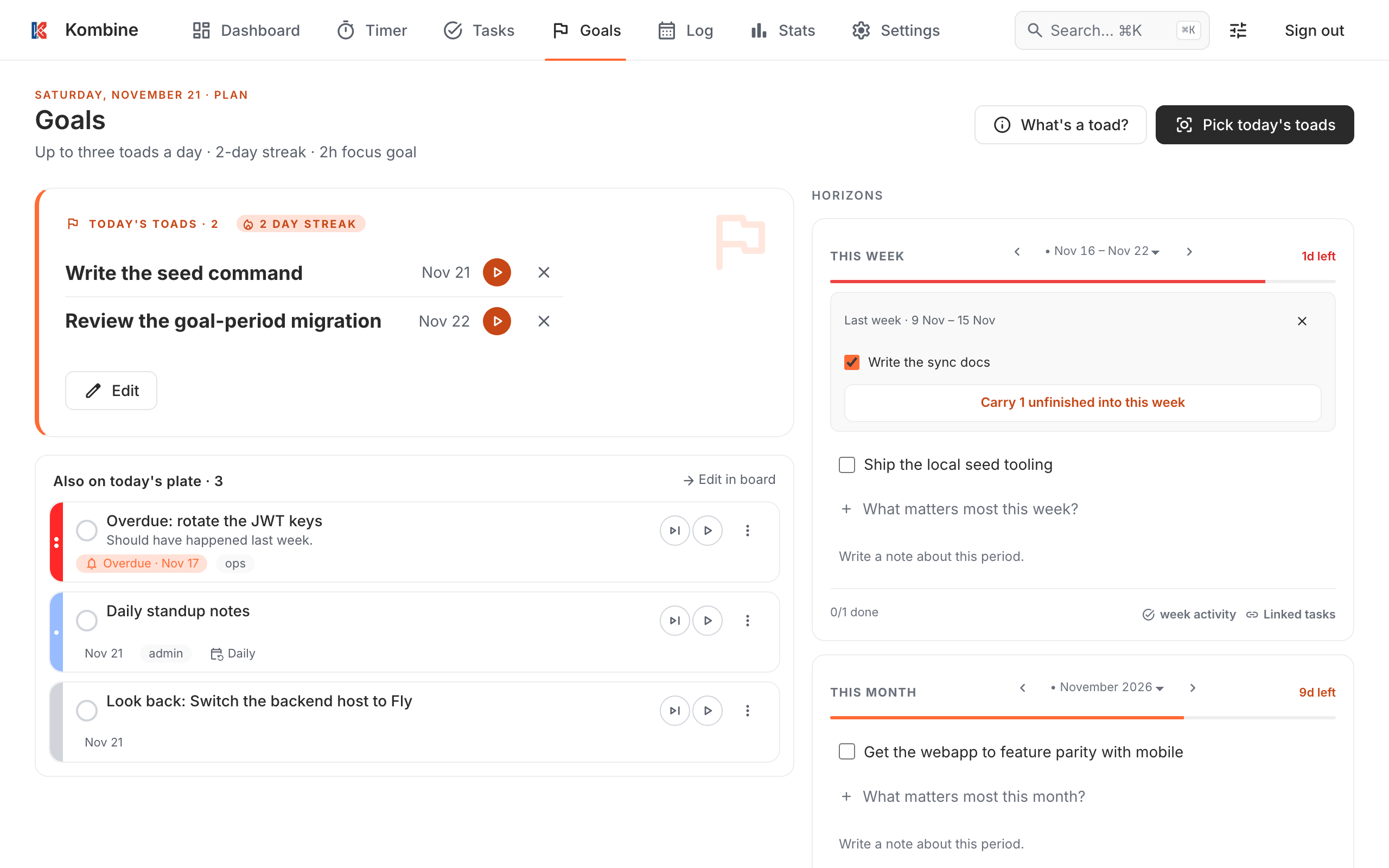
Section titled “Review and carry over”When a new period starts, Kombine lists last period’s unfinished goals. Pick the ones still worth doing and carry them into the new period; leave the rest. Carried goals are marked carried.
Untick what you want to leave behind, then tap Carry N. Not now hides the list for later.
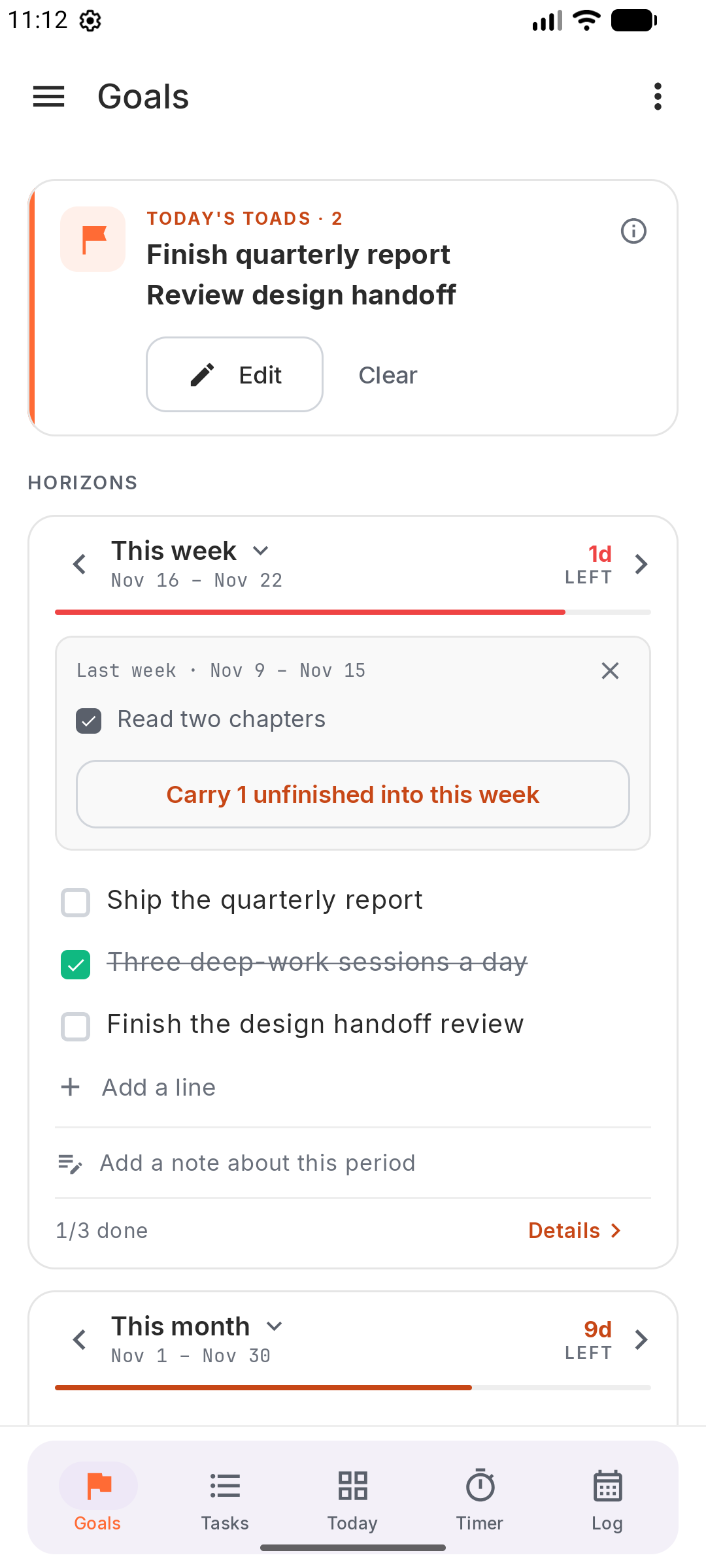
Untick what you want to leave behind, then tap Carry N. Not now hides the list for later.
Untick what you want to leave behind, then click Carry N unfinished into this week (or month, and so on). You can also dismiss the list.
Period notes
Section titled “Period notes”Every period can have one free-form note: how it went, what to change next time. You can write or edit it at any time, even after the period ends.
Tap Add a note about this period on the card.
Tap Add a note about this period on the card.
Click Write a note about this period. on the card, then Save. Clear removes it.
Link tasks to a goal
Section titled “Link tasks to a goal”Link tasks that move a goal forward. Linking is optional; most tasks never need it, and creating a task anywhere else never asks for a goal.
Each goal line shows how many tasks are linked to it. That’s a count, not progress: only your own tick marks a goal done, even when all its linked tasks are finished. Open the line to see its tasks and how many of them are done.
- Open a line’s tasks: tap the count at the end of the line. Details opens with that line selected, showing its linked tasks. A line with no tasks shows a faint add-task icon instead; tapping it opens the same view, ready to type.
- New task: under the line’s tasks, type in New task for this line and send. The task is created already linked. The expand icon at its end opens the full task editor with the link filled in.
- Link an existing task: tap Link a task there. Or open a task, tap ⋯ › Link to goal, and pick the goal.
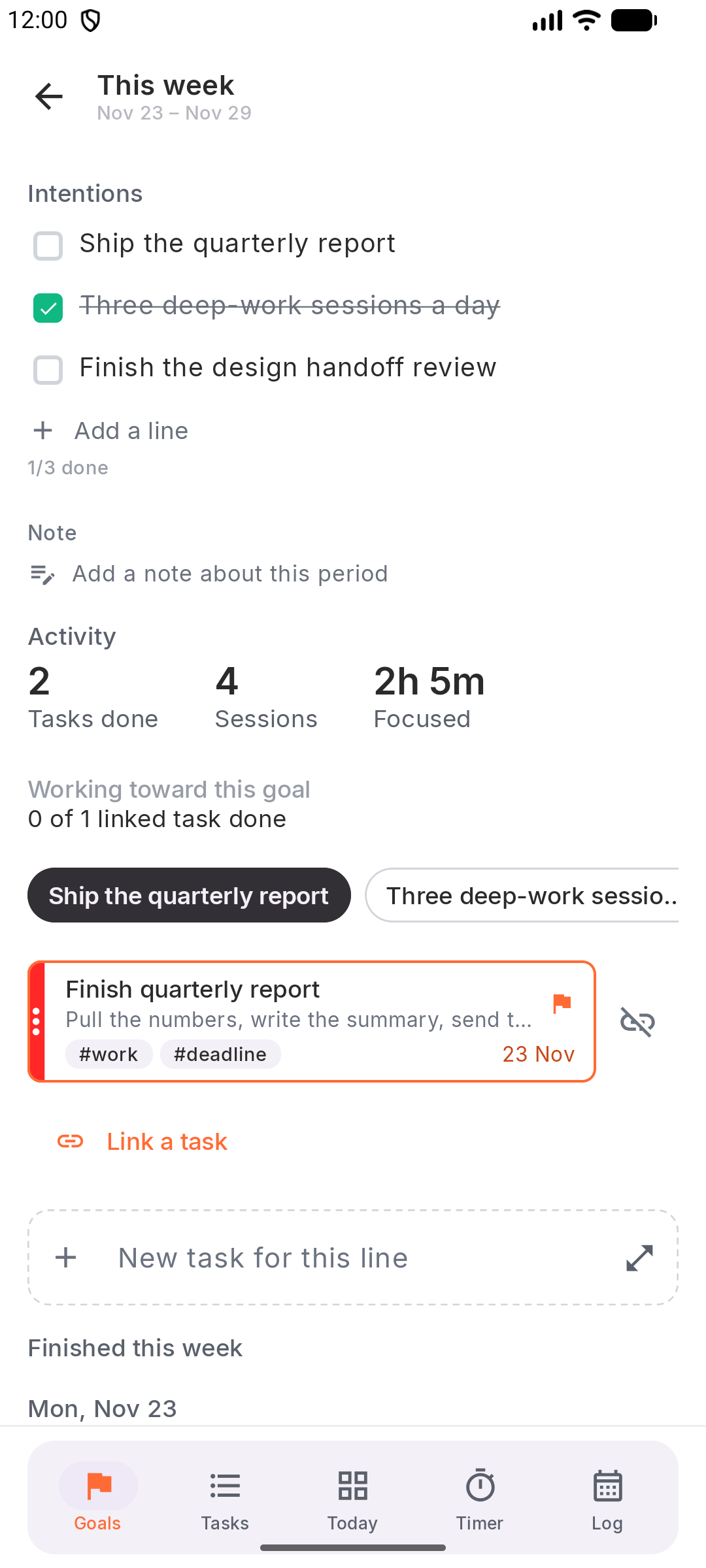
- Open a line’s tasks: tap the count at the end of the line. Details opens with that line selected, showing its linked tasks. A line with no tasks shows a faint add-task icon instead; tapping it opens the same view, ready to type.
- New task: under the line’s tasks, type in New task for this line and send. The task is created already linked. The expand icon at its end opens the full task editor with the link filled in.
- Link an existing task: tap Link a task there. Or open a task, tap ⋯ › Link to goal, and pick the goal.
- Open a line’s tasks: click the count at the end of the line (3 tasks). The line expands on the card to show its linked tasks. A line with no tasks shows + task when you hover over it.
- New task: type in New task for this line and press Enter. The task is created already linked. Full form opens the task form with the link filled in.
- Link an existing task: pick it from Link an existing task… below. Or open a task and pick the goal in its Goal chip.
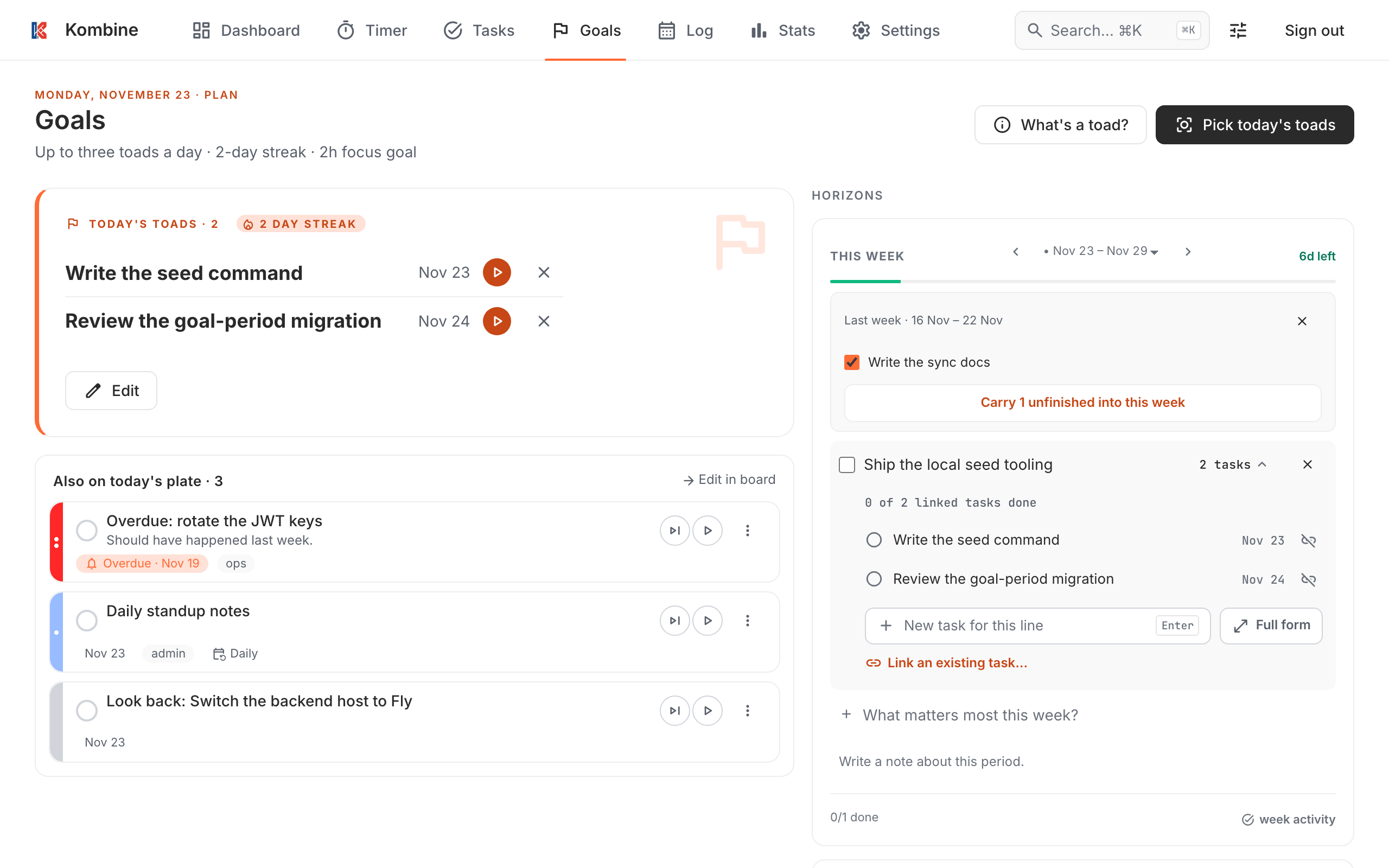
Periods that have ended still accept new and linked tasks. Finishing late counts.